App Store Connect Credentials
To fill in the Add New App form, you need three credentials from App Store Connect: a Key ID, an Issuer ID, and a Private Key (.p8 file). Here's how to generate them.
Step 1: Generate an API Key
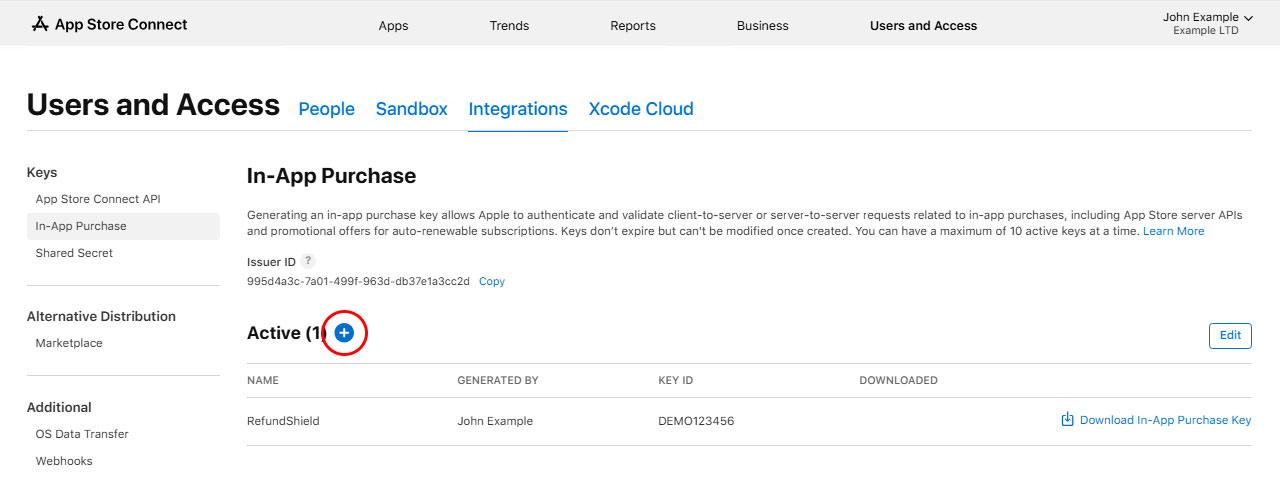
- Sign in to App Store Connect
- Go to Users and Access
- Select the Integrations tab, then In-App Purchase
- Click the + button to generate a new key
- Give it a name (e.g., "RefundShield")
- Click Generate
Step 2: Copy Your Credentials
Once the key is generated, collect these three values:
- Key ID: shown in the keys list (e.g.,
ABC1234DEF) - Issuer ID: shown at the top of the keys page (a UUID)
- Private Key (.p8 file): download it immediately; Apple only lets you download it once
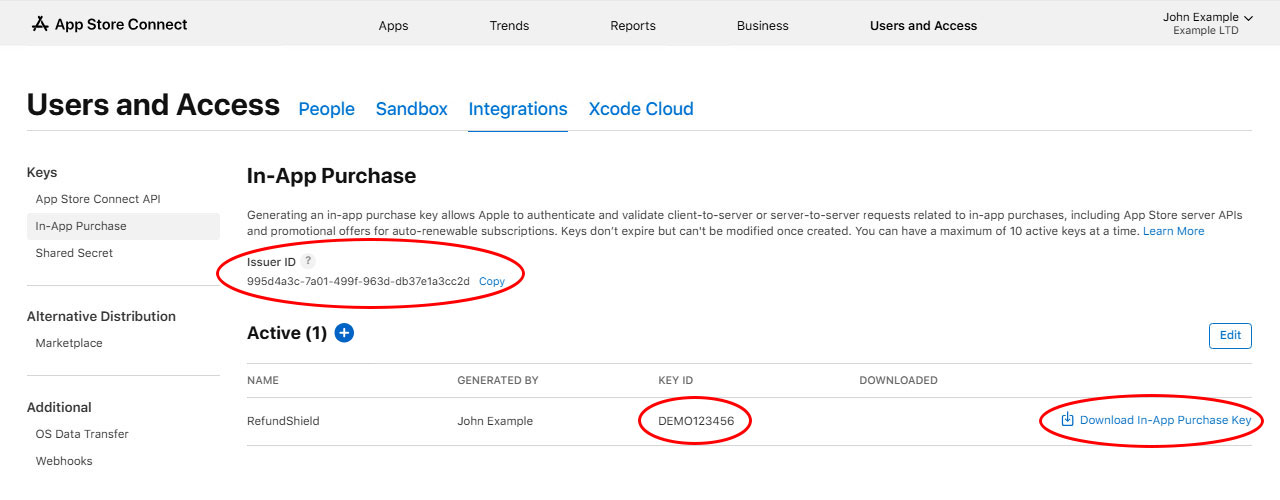
Important: Download the
.p8file right away. Apple will not let you download it again, if you lose it, you'll need to revoke the key and generate a new one.
Security
Your private key is encrypted at rest in our database using AES-256 encryption. It is never stored in plain text, never logged, and never exposed in the UI after submission.
Credential Errors
If RefundShield detects invalid Apple credentials (HTTP 401), you'll receive a notification email. To resolve:
- Verify the API key still exists in App Store Connect → Users and Access → Integrations → In-App Purchase
- Verify the Key ID and Issuer ID match what's shown in App Store Connect
- If the key was revoked, generate a new one and download the new
.p8file - Update the credentials in the app edit page on RefundShield