Google Play Credentials
To fill in the Add New App form for Android, you need a Service Account JSON key from your Google Cloud Project. Here's how to create it.
If you already have a Service Account set up from a previous app, skip to Step 5 to add the new app to it.
Step 1: Create or select a Google Cloud Project
- Go to Google Cloud Console
- Create a new project or select an existing one
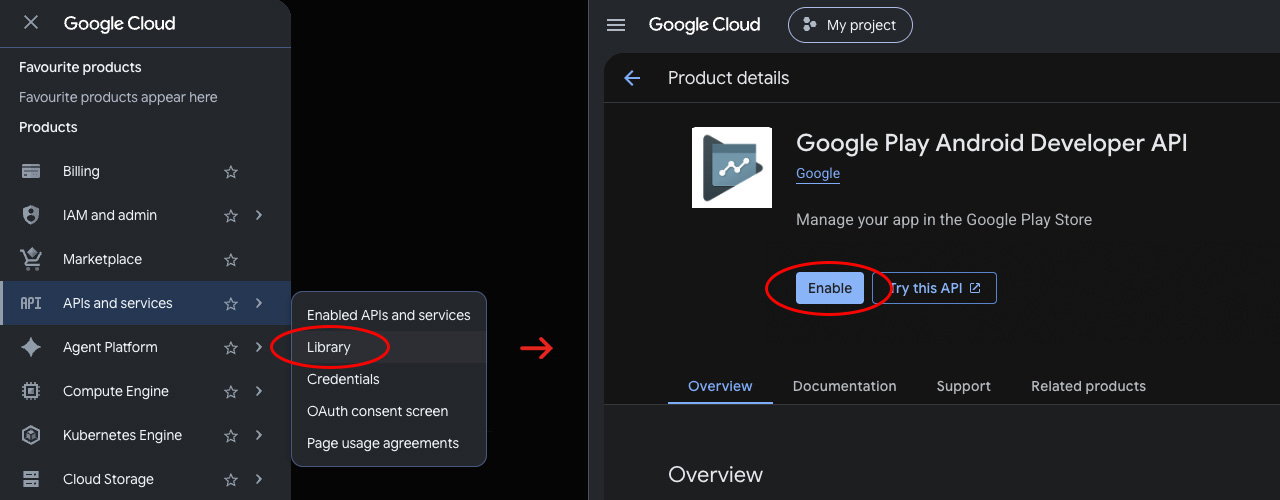
Step 2: Enable the Google Play Developer API
- In the left column go to APIs & Services → Library
- Search for Google Play Android Developer API
- Click Enable API
Step 3: Create a Service Account
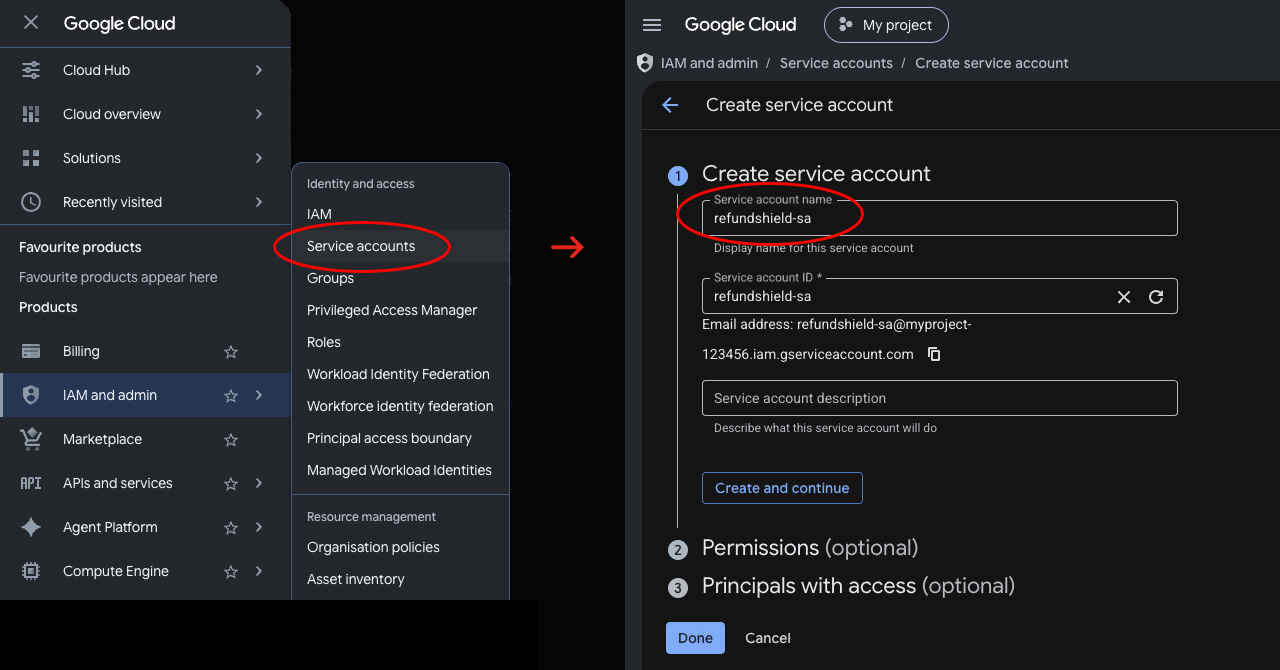
- In the left column go to IAM & Admin → Service Accounts
- Click + Create Service Account
- Give it a name (e.g.,
refundshield-sa) - Click Done
- Copy your Service Account Email, you will need it in step 5
Step 4: Generate a JSON Key
- In the Service Accounts list click on the account you just created
- Go to the Keys tab
- Click Add Key → Create New Key
- Choose JSON format
- Download the file and keep it secure
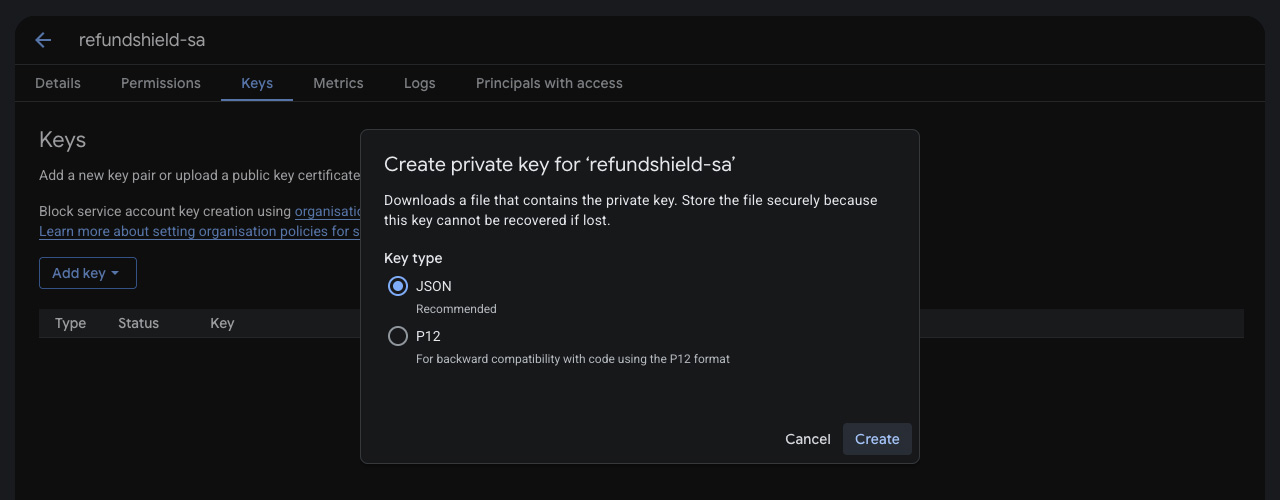
Important: Download the JSON file right away and store it securely. If you lose it, you'll need to generate a new key.
Step 5: Invite the Service Account to your app in Google Play Console
Permissions must be set at the app level, not at the account level.
- Go to Google Play Console
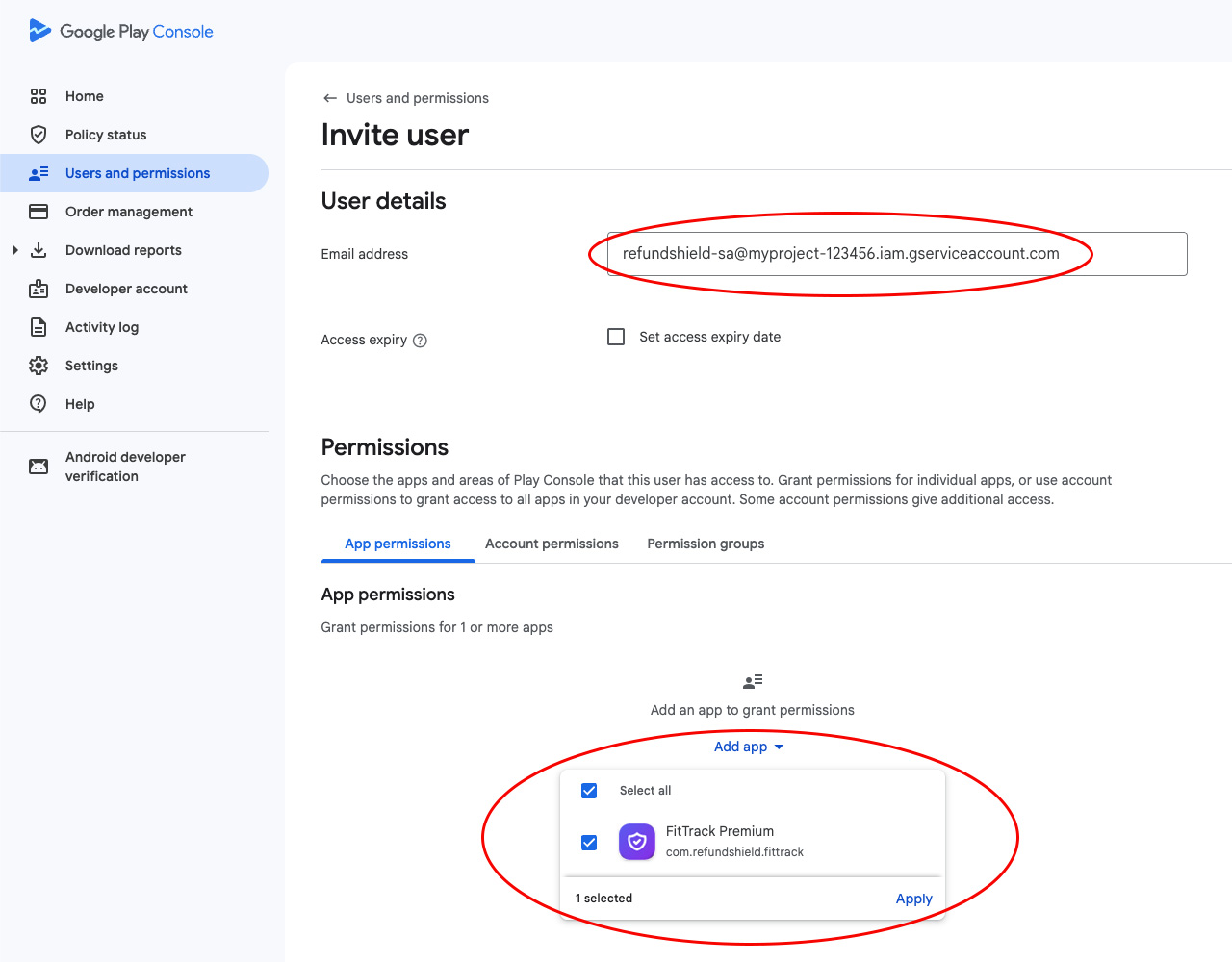
- Go to Users and Permissions → Invite new users
- Enter the Service Account email you created in step 3 (ends with
@...gserviceaccount.com).
You can also find it in the JSON file under"client_email". - Under App permissions:
- Click Add app
- Select your app
- Click Apply
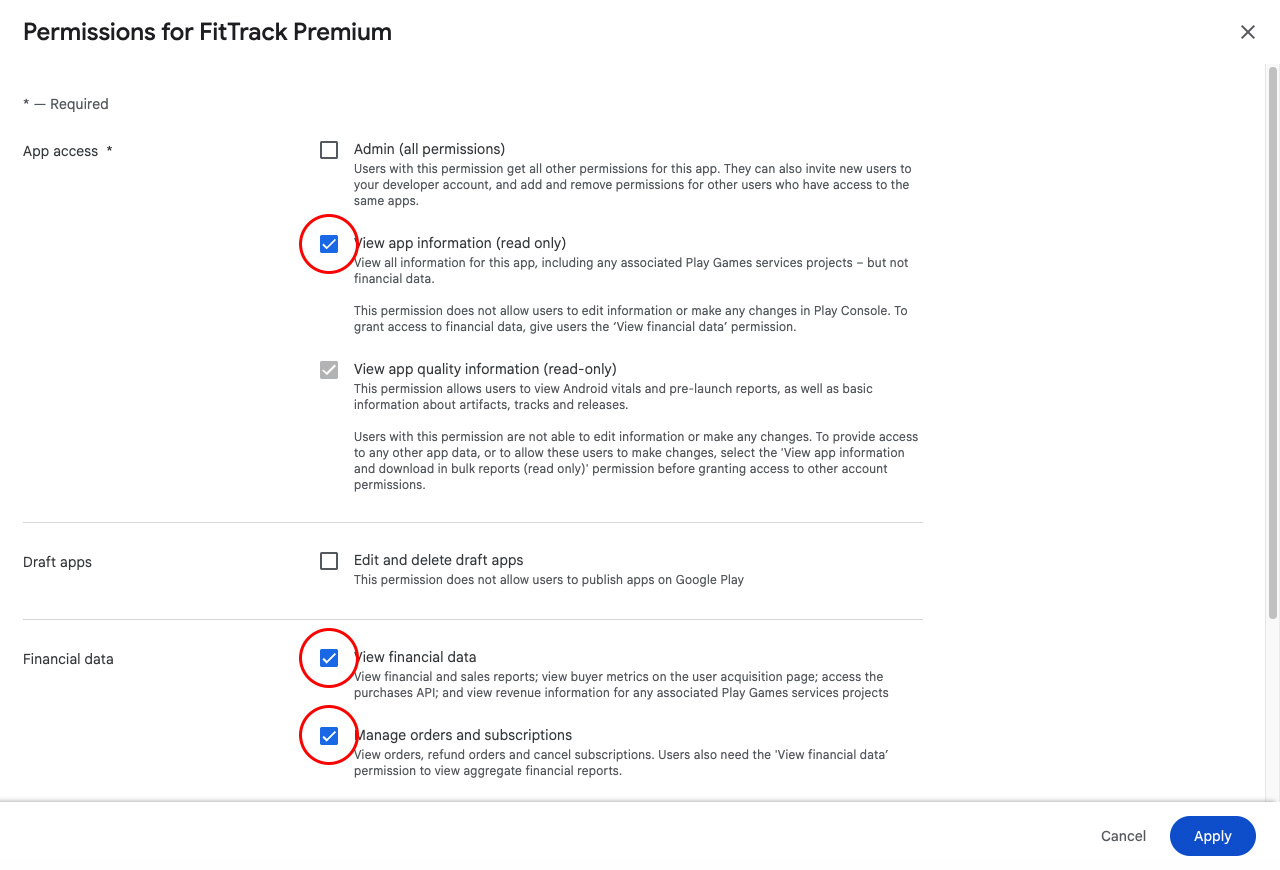
- Then enable these permissions:
- View app information
- View financial data
- Manage orders and subscriptions
- Click Invite user
- Click Send invitation
These permissions are necessary for RefundShield to check the validity of your app setup, listen for refund requests, answer via
orders.reviewrefundand check the google decision.
You can find the Service Account email in the JSON file under "client_email".
Security
Your Service Account JSON key is encrypted at rest in our database using AES-256 encryption. It is never stored in plain text, never logged, and never exposed in the UI after submission.
Credential Errors
If RefundShield detects invalid Google credentials (HTTP 401/403), you'll receive a notification email. To resolve:
- Verify the Service Account still exists in GCP
- Verify the invitation in Play Console is still active (at the app level, not account level)
- Verify all three permissions are checked: View app information, View financial data, Manage orders
- Regenerate the JSON key if expired or revoked
- Upload the new JSON in the app edit page on RefundShield