Configure Your Webhook URL
After adding your app to RefundShield, a unique webhook URL is generated for it. You need to register this URL in App Store Connect so Apple forwards refund events to RefundShield.
Step 1: Find Your Webhook URL
- In RefundShield, open your app's detail page
- Copy the Webhook URL displayed under the app name, it looks like:
https://refundshield.io/webhook/xxxxxxxx-xxxx-xxxx-xxxx-xxxxxxxxxxxx
Each app has its own unique webhook URL. Make sure you use the correct one when configuring multiple apps.
Step 2: Register in App Store Connect
- Sign in to App Store Connect
- Navigate to your app
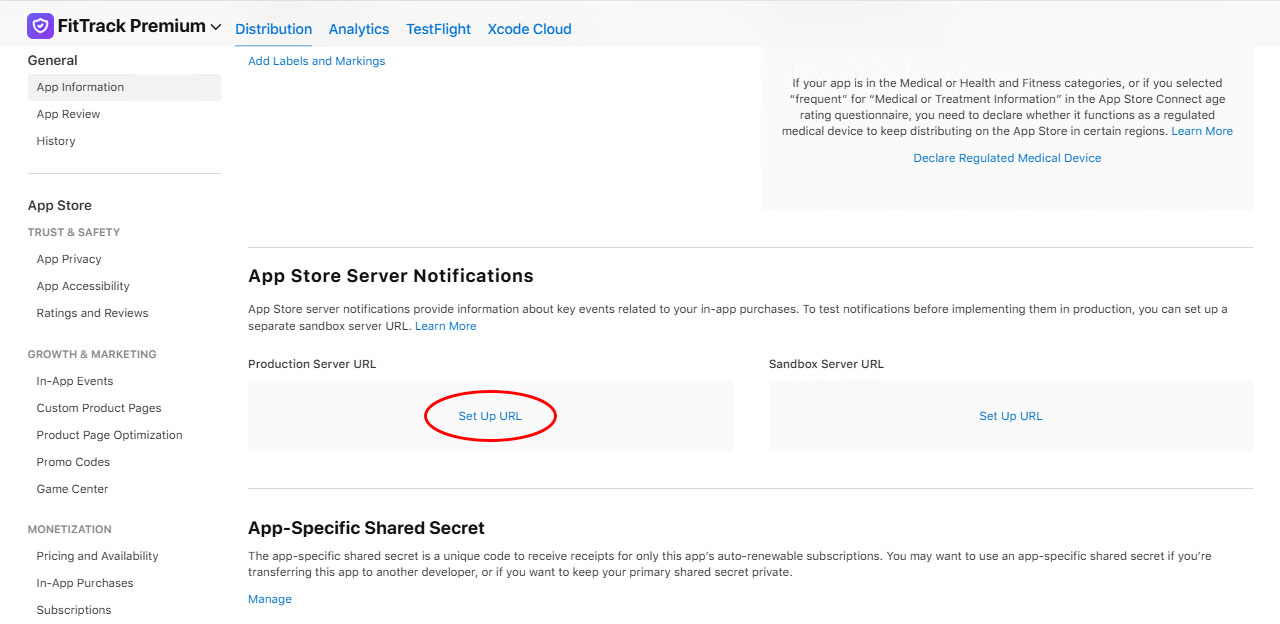
- Under General → App Information, scroll to App Store Server Notifications
- For the Production environment:
- Paste your RefundShield webhook URL in the URL field
- If asked, select Version 2
- Click Save
Verify It Works
Once configured, refund events appear in your app's Events tab. If nothing shows up after a real refund, double-check that the URL in App Store Connect matches exactly and that Version 2 is selected.
Forward Notifications to Another Endpoint (Optional)
App Store Connect only allows one server notification URL per app. If you also need the exact same notifications on your own server, you can set up webhook forwarding from the app's edit page:
- Open your app in RefundShield and go to Edit
- In the Webhook forwarding section, enter your endpoint URL (HTTPS only)
- Save the app
Every notification RefundShield receives is then forwarded unchanged, including the original signedPayload, shortly after it has been processed. The request body is identical to the one Apple sent; you can verify it with Apple's own JWS signature.