Configure Your Webhook URL
After adding your app to RefundShield, a unique webhook URL is generated for it. You need to configure Google Cloud Pub/Sub and enable Real-time Developer Notifications (RTDN) so Google Play forwards refund events to RefundShield.
Step 1: Find Your Webhook URL
- In RefundShield, open your app's detail page
- Copy the Webhook URL displayed under the app name, it looks like:
https://refundshield.io/webhook/google/xxxxxxxx-xxxx-xxxx-xxxx-xxxxxxxxxxxx
Each app has its own unique webhook URL. Make sure you use the correct one when configuring multiple apps.
Step 2: Create a Pub/Sub Topic
- Sign in to Google Cloud Console
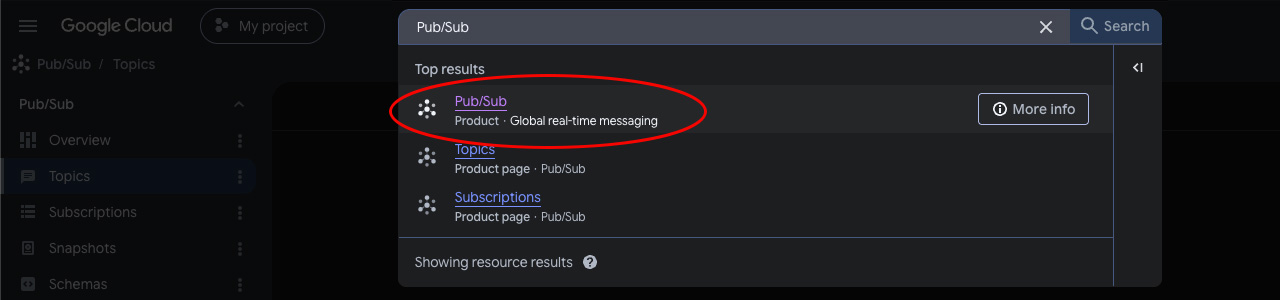
- Open the navigation menu (☰) in the top left, scroll down to Pub/Sub and go to Topics. If Pub/Sub is not visible in the sidebar, use the search bar at the top and type "Pub/Sub".
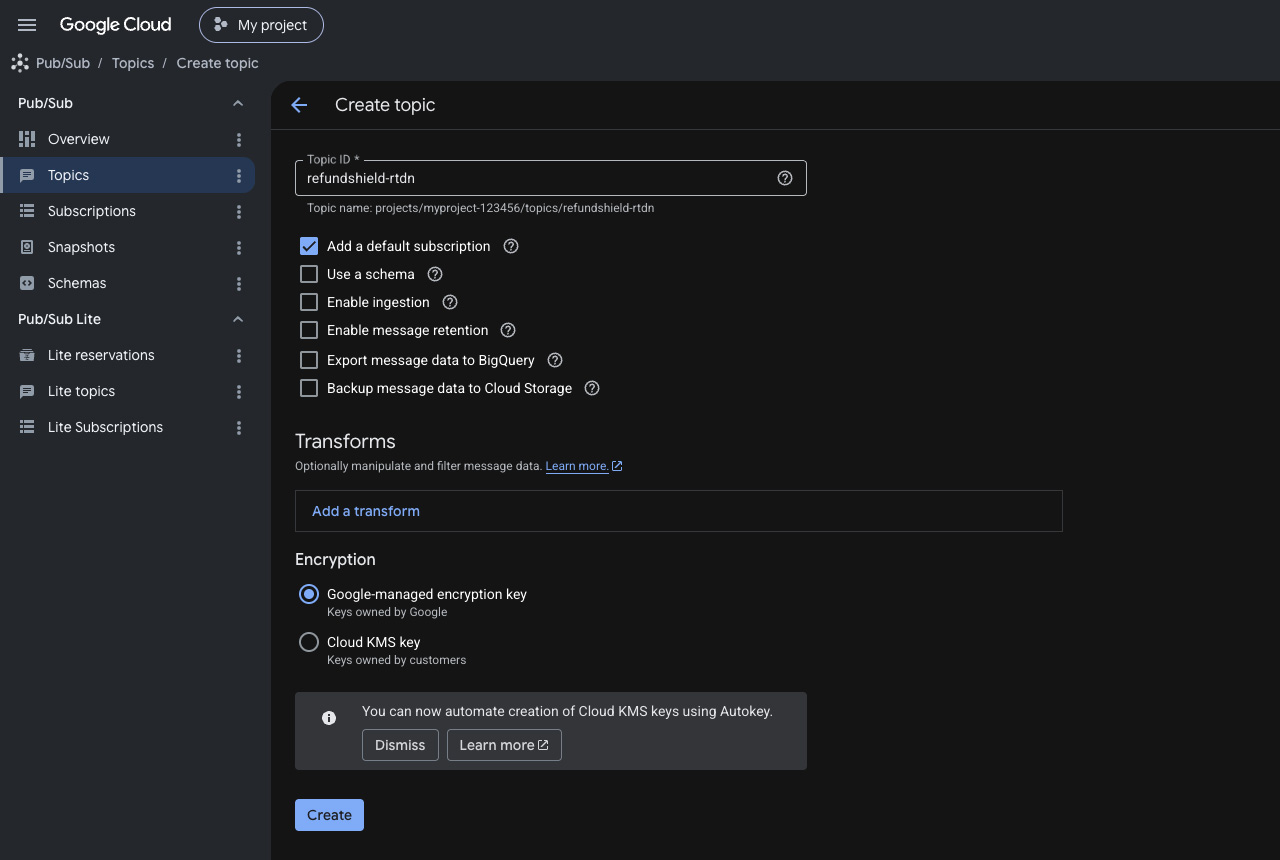
- Click Create Topic
- Give it a name (e.g.,
refundshield-rtdn) and click Create - Copy your Topic name ( it looks like
projects/your-project-id/topics/refundshield-rtdn), you will need it in step 5
Step 3: Grant Publish Permission to Google Play
Google Play Console publishes notifications to your topic using its own system account. You must grant it publish access:
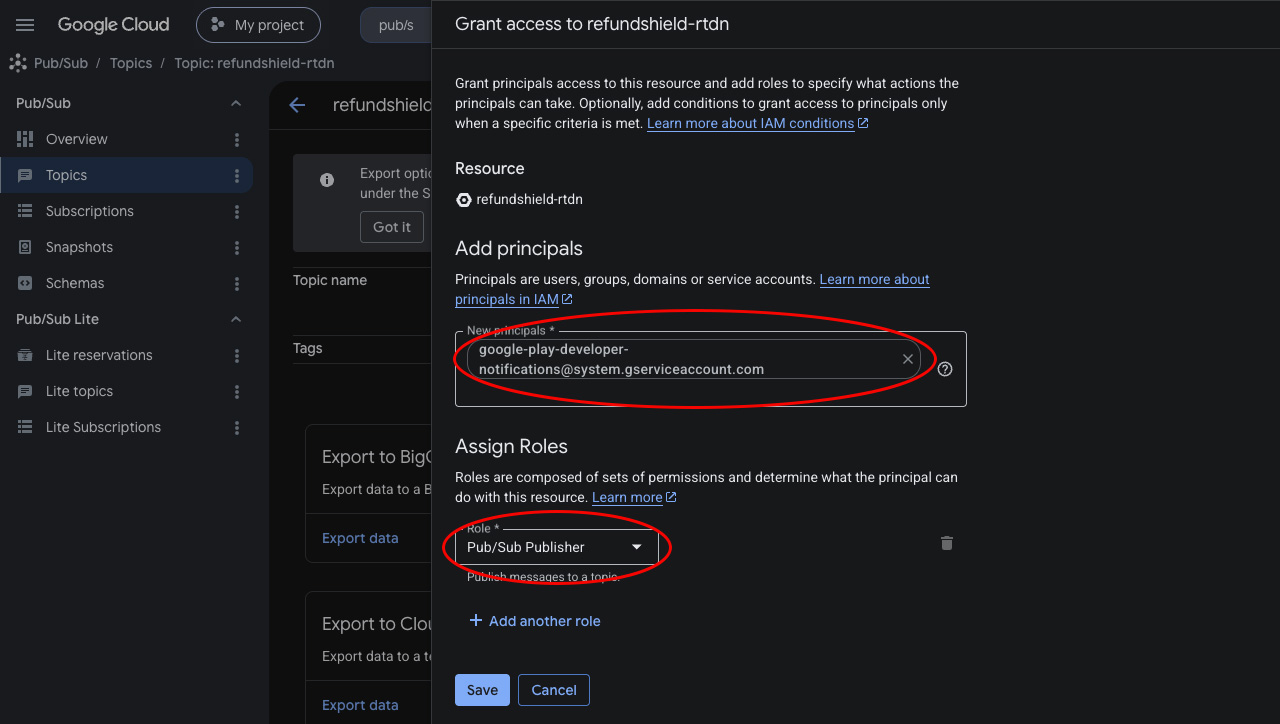
- On right of the topic page, go to the Permissions tab
- Click Grant Access
- In Add principals, enter:
[email protected] - Select the role Pub/Sub Publisher
- Click Save
Important: without this step, Google Play cannot deliver notifications and the test will fail.
Step 4: Create a Push Subscription
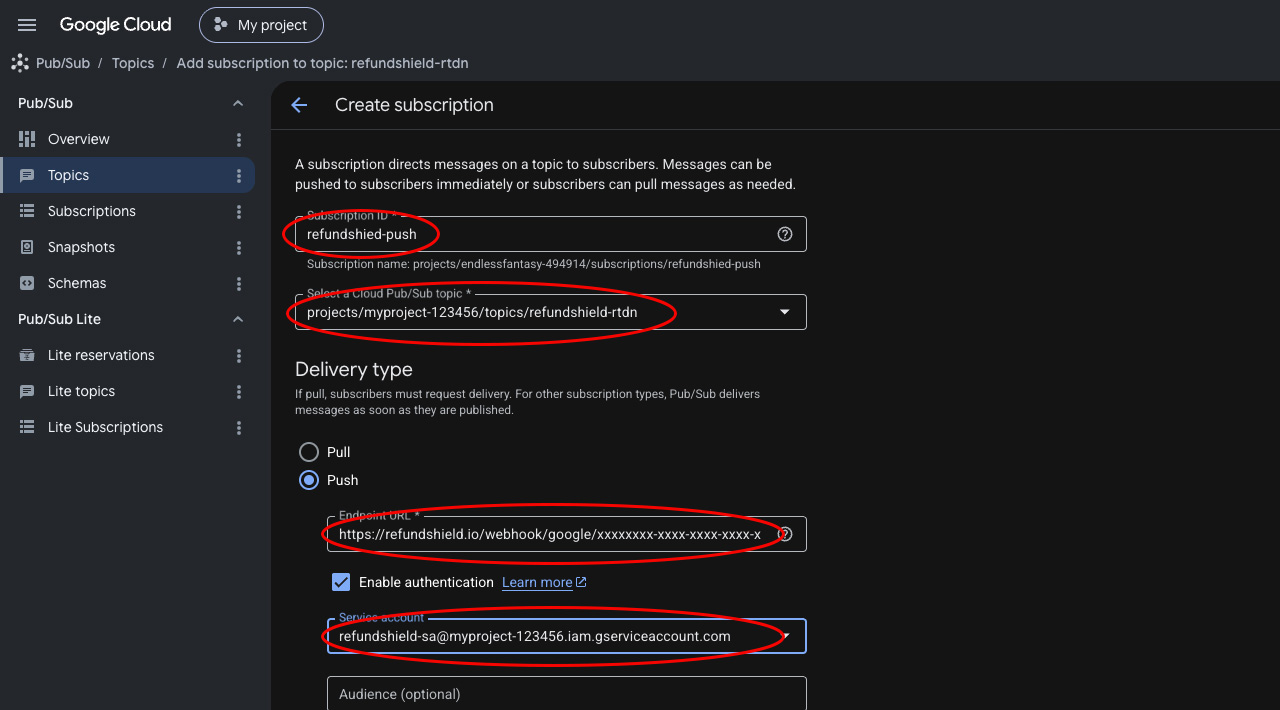
- On the topic page, click Create Subscription
- Give it a name (e.g.,
refundshield-push) - Set Delivery type to Push
- Paste your RefundShield webhook URL in the Endpoint URL field
- Under Authentication, enable it and select your Service Account (e.g.,
[email protected]) - Click Create
Step 5: Enable RTDN in Google Play Console
- Go to Google Play Console
- Select your app
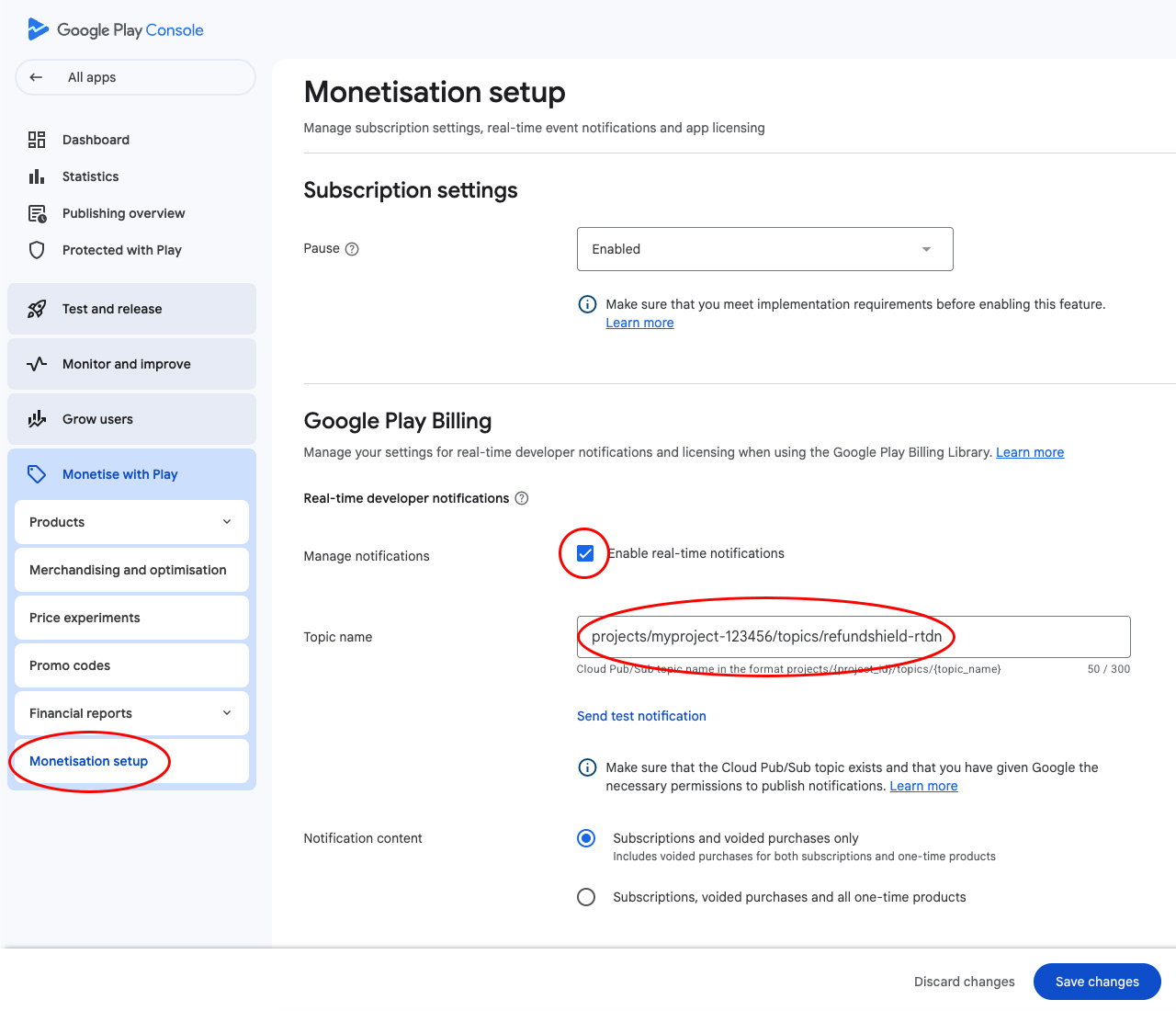
- Go to Monetise with Play → Monetisation setup
- Under Google Play Billing check Enable real-time notifications
- Enter your Pub/Sub topic name in the format
projects/{project_id}/topics/{topic_name}, you can find the full topic name in Google Cloud Console under Pub/Sub → Topics - Click Save
Verify It Works
Google Play Console lets you send a test notification to confirm your setup immediately, no need to wait for a real refund.
- In Google Play Console, go to your app → Monetization → Billing settings
- Under Real-time Developer Notifications, click Send test notification
If everything is configured correctly, RefundShield receives the notification and the webhook setup banner disappears from your app's overview page. No test data is shown in your dashboard or events, it's a silent verification.
Once verified, refund events will appear in your app's Events tab as they happen.
Forward Notifications to Another Endpoint (Optional)
A Pub/Sub push subscription can only deliver to one endpoint. If you also need the exact same notifications on your own server, you can set up webhook forwarding from the app's edit page:
- Open your app in RefundShield and go to Edit
- In the Webhook forwarding section, enter your endpoint URL (HTTPS only)
- Save the app
Every notification RefundShield receives is then forwarded unchanged, including the original Pub/Sub envelope and the Authorization JWT, shortly after it has been processed.
Note about JWT verification: the original Google JWT has RefundShield's webhook URL as its
audience, not your endpoint. If your server verifies the JWT with a standard library, you will need to accept RefundShield's URL as the audience (or skip the audience check). The signed body remains verifiable with Google's public keys.